Managing Vendor/ Third party Inventory in Dynamics
Consignment inventory is inventory which is owned by vendor but managed at customer’s location. When customer is ready to consume or use the inventory, customer can take over the ownership of the inventory.
There are following steps to be followed to use this feature
- Consignment Setup
- Process Consignment replenishment order
- Change of ownership
- Closing of Purchase order
- Setup Inventory ownership: Inventory Management > Setup > Dimension > Inventory Owners

2. Setup Tracking Dimension : Product Information Management > Setup > Dimension and variant group > Tracking Dimension and Attache this to the product
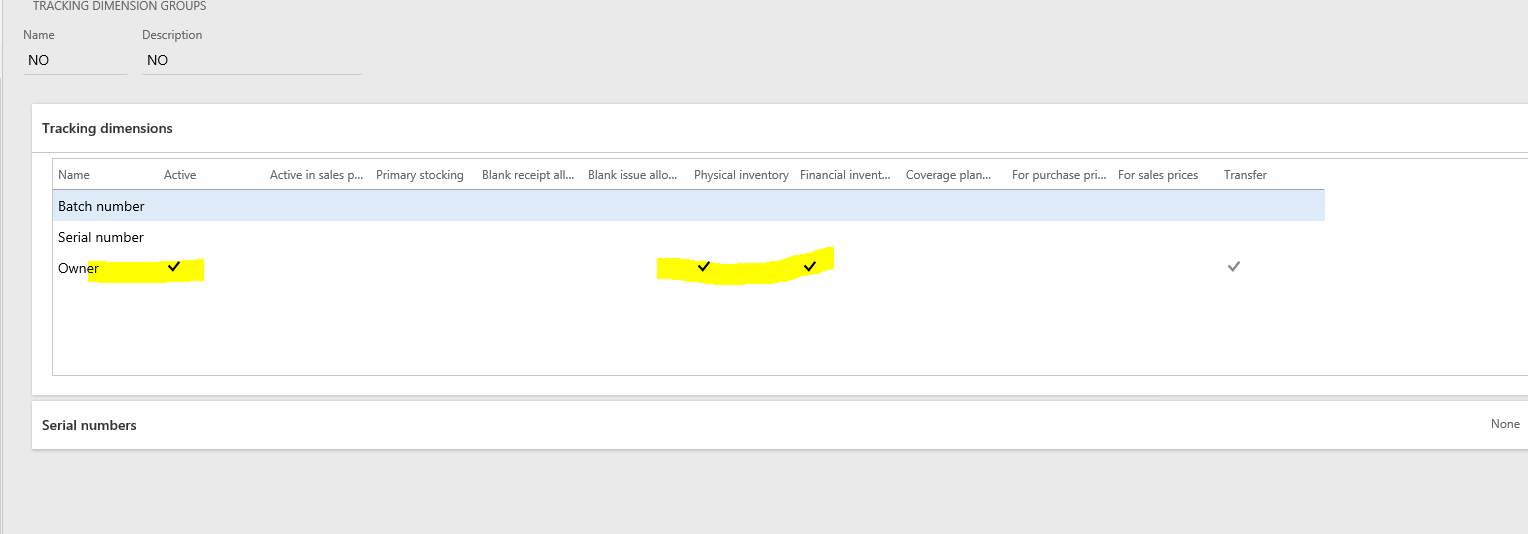
Note: This process works with only Moving Average and standard cost inventory valuation.
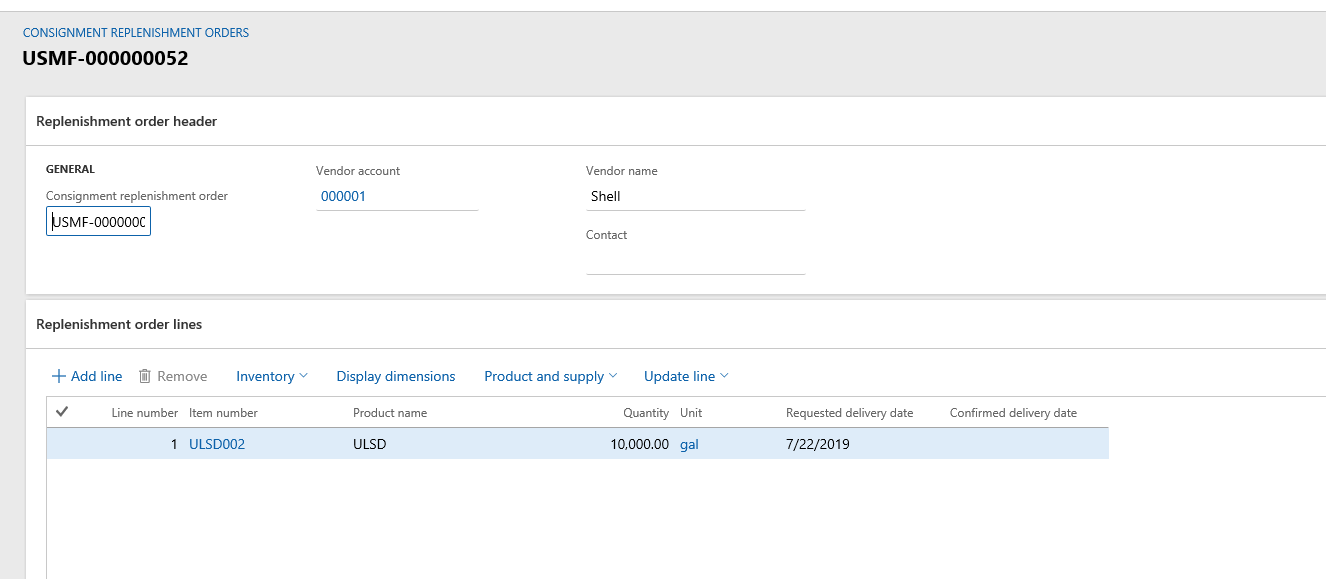
3. Create Consignment replenishment order: Procurement and sourcing > Consignment > Consignment replenishment order > Select vendor and add lines to order
4. Post product receipt of the order: Procurement and sourcing > Consignment > Consignment replenishment order > Product Receipt > Specify number and Post
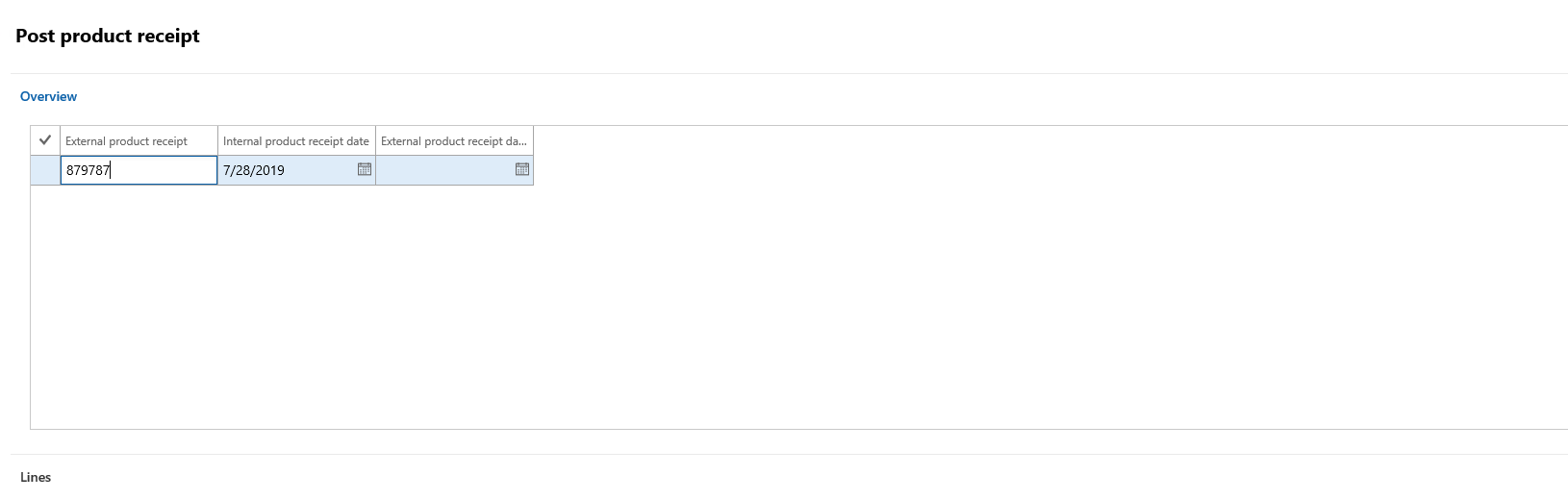
Note-1: This will not post any financial entry in the company books
Note-2: This can also be created through vendor portal
Note-3: This will increase the inventory quantity at the selected site and warehouse but the ownership will be with Vendor and it can not be used by company

5. Change Ownership : This is require when company wants to use vendor inventory, that is when we have to change the ownership of inventory from vendor to company. This will automatically create the purchase order and post the product receipt.
Inventory Management > Journal Entries > Items > Inventory ownership change > select Item , quantity , from and to owner and post
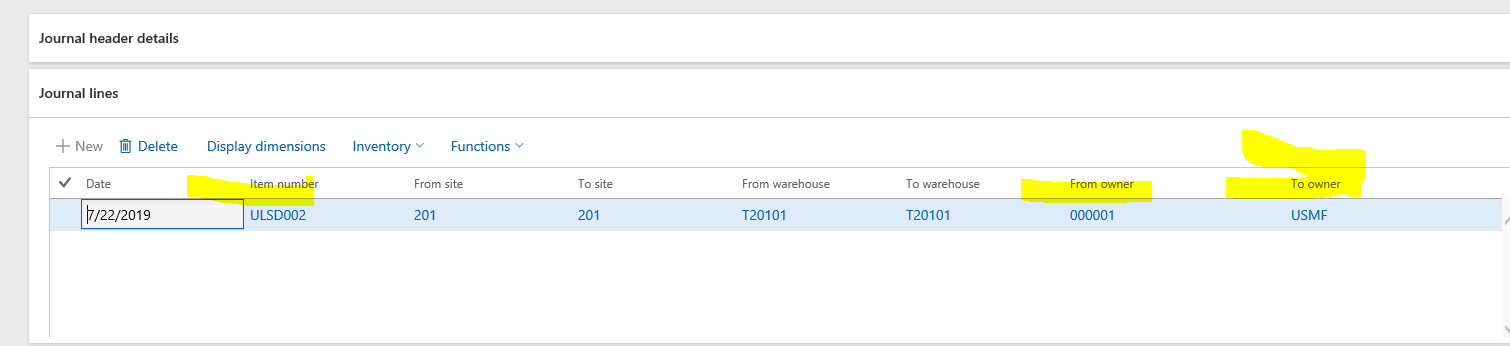
6. Now Navigate to the created purchase order and proceed with Invoicing process and payments for the same. Also now inventory can be used by company.
Enjoy The D365 🙂
 Explore Microsoft Dynamics 365 Finance and Operations Together